
Building Professional, Modern API Documentation in .NET Core with Scalar

Introduction
In today’s software ecosystem, APIs are everywhere. Whether you are building a mobile application, a microservices architecture, or an internal company platform, your API is often the backbone of the system. But even the best API becomes useless if developers cannot understand how to consume it. This is why API documentation(Scalar /Swagger) is crucial.
For a long time, .NET developers relied mainly on Swagger / Swashbuckle to automatically generate OpenAPI documentation. Swagger is still good, but it lacks a modern design and sometimes feels outdated. This is where Scalar comes in.
Scalar is a modern, fast, and beautifully designed API documentation tool compatible with OpenAPI specifications. It integrates very well with .NET Core, giving developers a clean UI, theme customization, and a highly polished developer experience.
In this article, you will learn:
- What Scalar is and why it’s better than traditional Swagger UI
- How to install and configure Scalar in .NET Core
- How to document your API using attributes and XML comments
- How to generate clean, professional API docs
- How to customize Scalar UI
- A full .NET Core API example with working code
- Best practices and tips for API documentation
Let’s get started.
What Is Scalar?
Scalar is a modern alternative to Swagger UI for generating interactive API documentation.
Instead of the old-style Swagger design, Scalar offers a:
✔ Clean UI
✔ Dark/light theme
✔ Fast performance
✔ Easy customization
✔ Beautiful developer experience
Why Developers Prefer Scalar
➜ Better UX: The interface is modern and responsive.
➜ Developer-first: Easy to extend and configure.
➜ Zero learning curve: Works with the same OpenAPI definitions as Swagger.
➜ Supports .NET, Node, Go, Python…
➜ Open-source and actively maintained.
For teams building APIs in .NET 7, .NET 8, or .NET 9, Scalar is a perfect fit.
Why Use Scalar Instead of Swagger UI?
While Swagger UI is widely used, it has some limitations:
| Feature | Swagger UI | Scalar |
|---|---|---|
| Modern UI | ❌ Old design | ✅ Stylish, clean |
| Performance | Medium | High |
| Dark mode | Limited | Full |
| Customization | Basic | Advanced |
| Developer experience | OK | Excellent |
| Search & navigation | Average | Great |
| OpenAPI 3.1 support | Partial | Full |
If your project needs better quality documentation, especially for clients or teams, Scalar is an excellent choice.
Installing Scalar in a .NET Core Web API Project
Scalar works seamlessly with .NET 7, .NET 8, .NET 9, and .NET 10.
Below is a step-by-step example using .NET 9 Web API, but the same works on .NET 8 or .NET 7.
Step 1: Create a New .NET Web API
If you don’t have a project yet, create one:
dotnet new webapi -n ScalarApiDemo
cd ScalarApiDemo
Step 2: Add Scalar Package
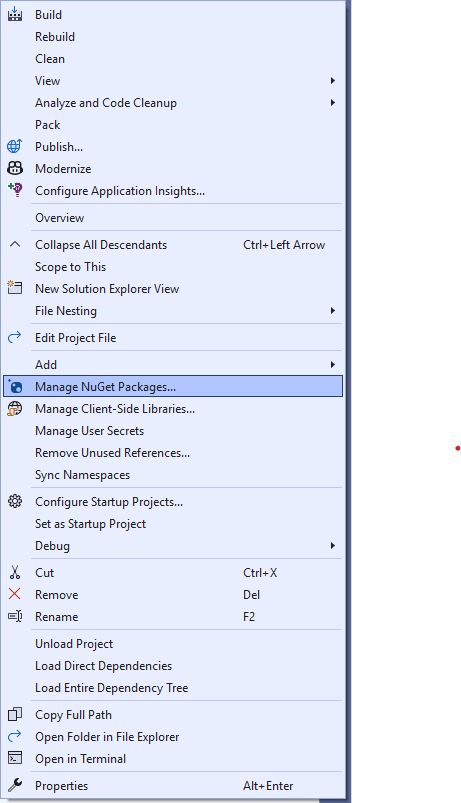
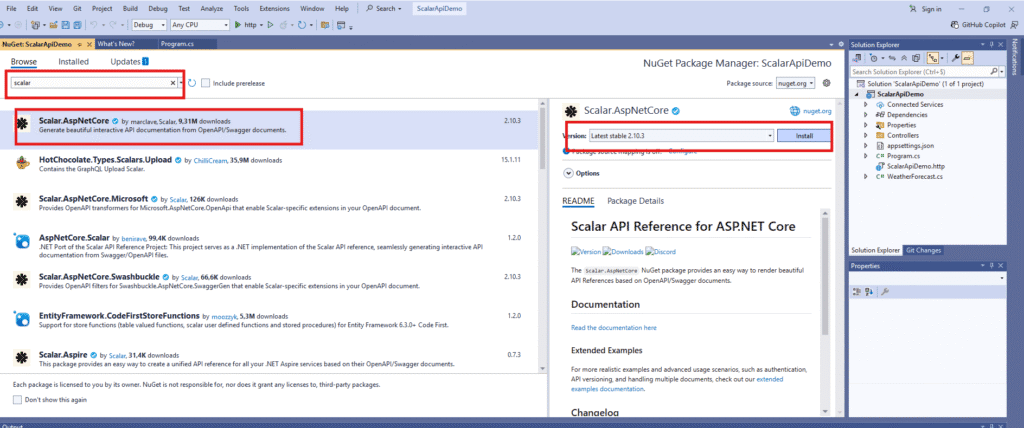
Install the official Scalar package from NuGet:
dotnet add package Scalar.AspNetCore
Or from NuGet package manager
Step 3: Enable XML Comments (Required for Documentation)
Edit your .csproj file:
<PropertyGroup>
  <TargetFramework>net9.0</TargetFramework>
  <GenerateDocumentationFile>true</GenerateDocumentationFile>
  <NoWarn>$(NoWarn);1591</NoWarn>
</PropertyGroup>
This allows Scalar to read method descriptions, parameters, and examples.
Step 4: Configure Scalar in Program.cs
Add this code to enable Scalar:
using Scalar.AspNetCore;

var builder = WebApplication.CreateBuilder(args);

// Add services
builder.Services.AddControllers();
builder.Services.AddEndpointsApiExplorer();
builder.Services.AddOpenApi(); // OpenAPI generator

var app = builder.Build();

// Enable OpenAPI JSON
app.MapOpenApi();

// Enable Scalar UI at /docs
app.MapScalarApiReference(options =>
{
    options.Title = "SAIDI Oussama Tuto : My API Documentation";
    options.Theme = ScalarTheme.Dark;
});

app.MapControllers();

app.Run();
Step 5: Configure Scalar in launchSettings.json
{
  "$schema": "https://json.schemastore.org/launchsettings.json",
  "profiles": {
    "http": {
      //Other config here
      "launchBrowser": true,
      "launchUrl": "http://localhost:5083/Scalar",
     //Other config here
    }
    }
  }
}
That’s it—Scalar is now active at:
https://localhost:5001/Scalar
Creating an Example API Controller
Below is a simple example of an API controller with full Scalar-friendly documentation.
Create file: Controllers/ProductsController.cs
using Microsoft.AspNetCore.Mvc;

namespace ScalarApiDemo.Controllers
{
    [ApiController]
    [Route("api/[controller]")]
    public class ProductsController : ControllerBase
    {
        /// <summary>
        /// Returns a list of all products.
        /// </summary>
        /// <remarks>
        /// This endpoint retrieves all products from the store.
        /// </remarks>
        /// <returns>A list of product objects.</returns>
        [HttpGet]
        public IActionResult GetProducts()
        {
            var products = new List<Product>
            {
                new Product { Id = 1, Name = "Laptop", Price = 1200 },
                new Product { Id = 2, Name = "Keyboard", Price = 40 }
            };

            return Ok(products);
        }

        /// <summary>
        /// Returns a single product by ID.
        /// </summary>
        /// <param name="id">The product ID.</param>
        /// <returns>The product object.</returns>
        [HttpGet("{id}")]
        public IActionResult GetProduct(int id)
        {
            var product = new Product { Id = id, Name = "Laptop", Price = 1200 };

            return Ok(product);
        }

        /// <summary>
        /// Creates a new product.
        /// </summary>
        /// <param name="product">The product to create.</param>
        /// <returns>The created product.</returns>
        [HttpPost]
        public IActionResult CreateProduct(Product product)
        {
            product.Id = new Random().Next(100, 999);
            return CreatedAtAction(nameof(GetProduct), new { id = product.Id }, product);
        }
    }

    public class Product
    {
        /// <summary>The ID of the product.</summary>
        public int Id { get; set; }

        /// <summary>The name of the product.</summary>
        public string Name { get; set; }

        /// <summary>The price of the product.</summary>
        public decimal Price { get; set; }
    }
}
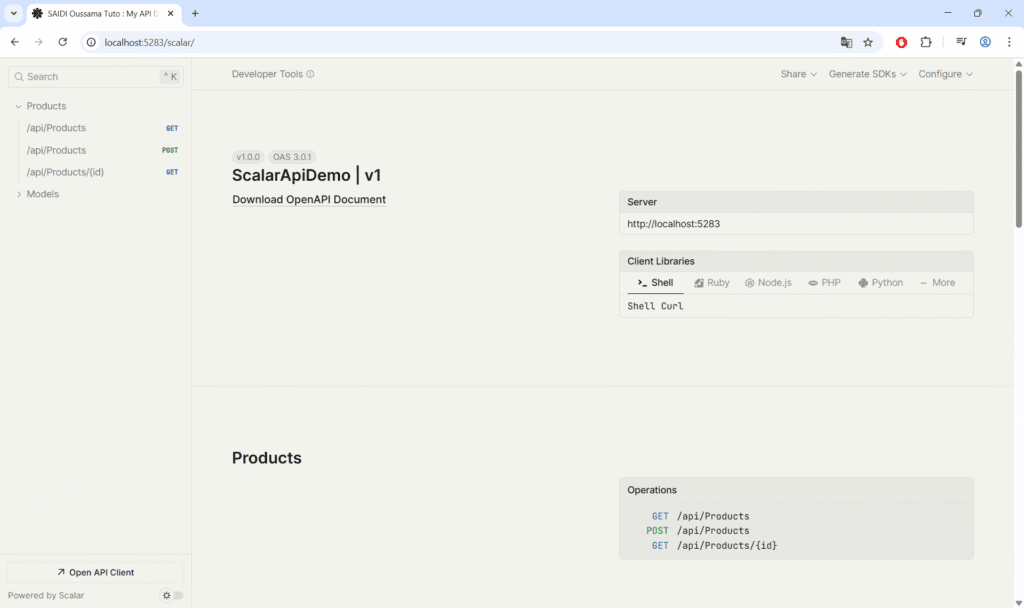
Result: Clean, Professional API Documentation
Once your project runs, navigate to /docs.
You will see:
- Automatic list of all endpoints
- Parameters & schemas
- Response examples
- Beautiful layout
- Dark mode option
- Automatic JSON formatting
- Interactive Request Maker
Scalar transforms your API into a professional-grade documentation platform.
Customizing Scalar UI
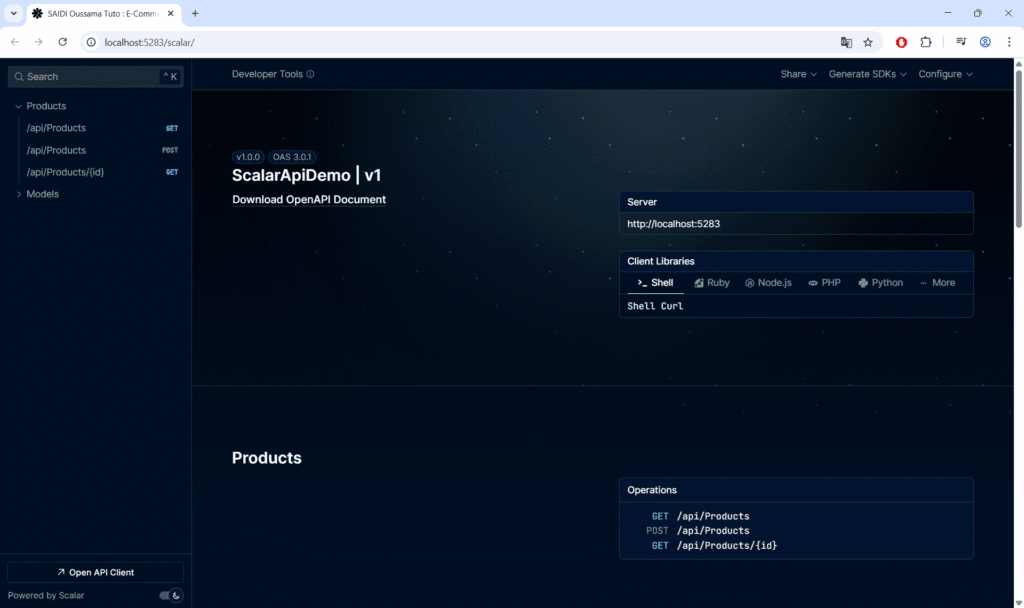
Scalar offers multiple customization options, including:
app.MapScalarApiReference(options =>
{
    options.Title = "SAIDI Oussama Tuto : E-Commerce API Documentation";
    options.Layout = ScalarLayout.Modern;
    options.DarkMode = true;
    options.Theme = ScalarTheme.BluePlanet;
});
Available themes
- Default
- None
- Alternate
- Moon
- Purple
- Solarized
- BluePlanet
- Saturn
- Kepler
- Mars
- DeepSpace
- Laserwave
Layouts
- Classic
- Modern
Branding
You can add logo, colors, description.
How to Improve Your API Documentation
Scalar helps automatically, but you can improve documentation quality by:
1. Use XML documentation on controllers
/// <summary>
/// Updates the price of a product.
/// </summary>
/// <param name="id">Product ID</param>
/// <param name="price">New price</param>
2. Add example responses
[ProducesResponseType(typeof(Product), 200)]
3. Use request/response DTOs
Avoid exposing database entities directly.
4. Provide clear error messages
Document all responses: 200, 400, 404, 500…
for more details the official Scalar documentation
Conclusion
Scalar is quickly becoming one of the best alternatives to Swagger for .NET developers. It offers a modern, clean, and fast documentation experience that works perfectly with .NET Core APIs.
In this guide, you learned:
- What Scalar is and why it’s better than Swagger
- How to install and configure Scalar in .NET Core
- How to write clean API documentation with examples
- How to customize Scalar UI
- Complete .NET Core tutorial with ready-to-run code
If you want to provide professional-grade API documentation for your .NET Core application, Scalar is an excellent choice.
If this article helped you, consider supporting my work.
☕ Buy me a coffeeLast blogs
- React 19 & Vite: Build Fast Frontends for .NET Developers

- RESTful API best practices with ASP.NET Core Part 2
- RESTful API Best Practices with ASP.NET Core